Parental Controls App by Ohana
- 3.5
- Rating
- 50.00K
- Installs
- Free
- Price

 Analysis by App-foxy
Parents usually do not need another complicated dashboard; they need a practical way to make a child’s phone less distracting and the internet less risky. That is the space where Parental Controls App by Ohana fits. I see it as a parenting tool for setting boundaries around screen use, limiting access to apps, and adding protection to a child’s online routine. It is free to download, aimed at Everyone, and available for devices running Android 8.0 or later.
My first impression is that this is not trying to be a general family organizer or a child-focused entertainment app. Its purpose is narrower and more useful: helping a parent take control of a child’s digital environment. That focus is a strength, because parents can approach it with a specific problem in mind rather than learning a large collection of unrelated features.
At the same time, parental-control software is only effective when it fits the family’s habits. A tool can block access, but it cannot replace a conversation about why a limit exists. I would therefore treat this app as a practical layer of supervision, not as a complete parenting solution.
You May Also Like

 Blood Strike: 2.5 Anniversary
Blood Strike’s Loadouts Turn Every Drop Into a Tactical Gamble
A close look at Blood Strike’s custom loadouts: how fast access to signature weapons reshapes its battle royale rhythm, rewards preparation, and narrows the gap between fights.

 Pandora - Music & Podcasts
Pandora’s Music Is Easy to Start, but Harder to Recover
Pandora’s strength is its low-effort path from a seed to a station. Its weak spot is how much confidence it asks you to place in connection, setup, and quiet recovery.

 8 Ball Pool
 Is Built on Rivalries, Rematches, and Routine
A close look at the rivalries, rematches, shared routines, and unanswered safety questions that turn a quick pool match into a persistent mobile community.

 Samsung Music
’s Quiet Strength Is Playing What You Already Own
Its reach comes less from spectacle than from dependable access to a personal library. That simplicity is both the app’s strongest retention engine and its ceiling.

 AccuWeather: Weather Radar
AccuWeather Review: A Quick, Clear Forecast for Everyday Decisions
For everyday plans, the best forecast is the one you can understand quickly. AccuWeather makes rain timing, radar, and local conditions easy to act on, with a few trade-offs.

 Hill Climb Racing
Why Hill Climb Racing Still Turns Crashes Into One More Run
A tiny car, a bumpy hill and one more upgrade: Hill Climb Racing keeps resurfacing because its simple chaos makes every near-miss feel personal.
More From Our News Desk
View All News


What the app does in everyday family life
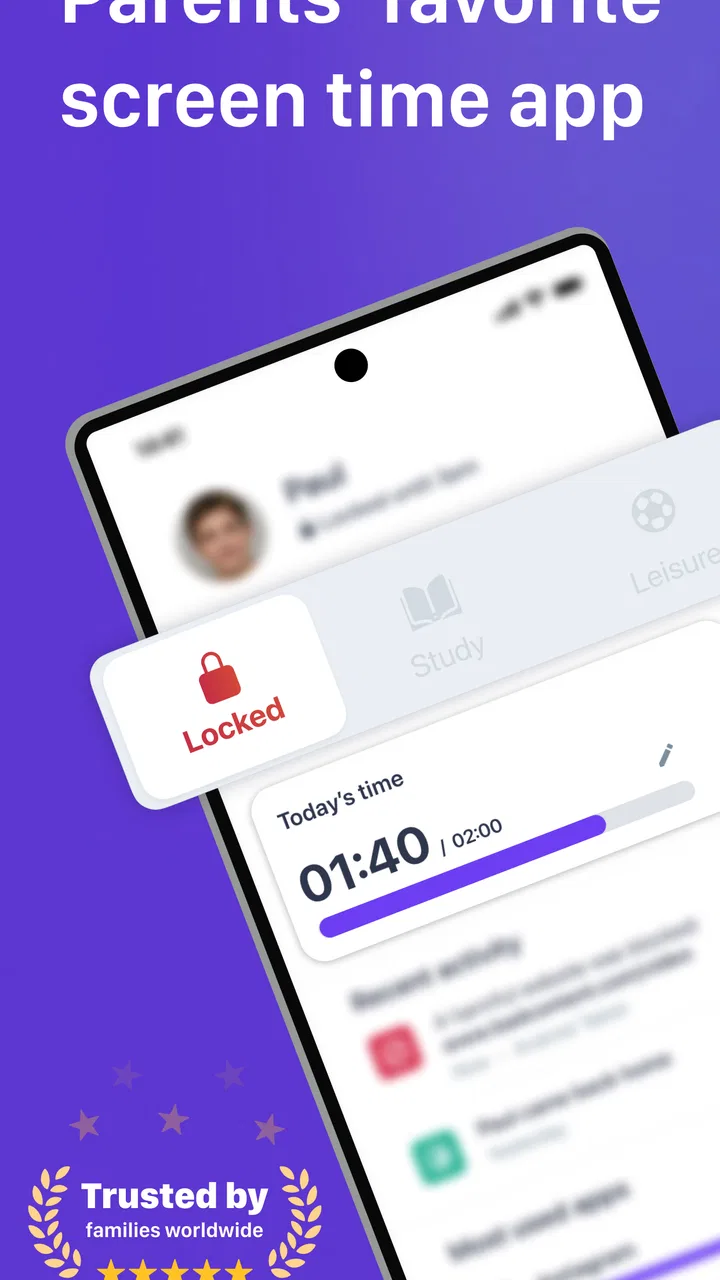
The central promise is straightforward: manage screen time, restrict applications, and help secure internet use for children. In practice, that makes it relevant for families dealing with late-night scrolling, apps that interrupt homework, or websites that a parent does not want a child visiting without supervision.
A realistic example would be a child who uses the same phone for schoolwork, video content, games, and messaging. Instead of taking the device away every evening, a parent can use a control app to create a clearer boundary around when the phone is available and which parts of it should remain accessible. That can make the rule feel more consistent than repeatedly asking the child to put the phone down.
I also think the app is useful during transitions. A child may have been allowed broad access during a holiday and then need a more structured routine when school begins. Rather than changing every household rule at once, I would start with the biggest source of conflict, such as a distracting app or unrestricted browsing, and adjust gradually. This approach makes it easier to see whether the control is solving a real problem or simply creating frustration.
One detail parents should consider before installing it is that controls work best when both the parent and child understand what is happening. If restrictions appear unexpectedly, the child may see the app as punishment or try to work around it. I recommend explaining the purpose, agreeing on exceptions such as schoolwork or family travel, and checking the settings together at the beginning.
Screen-time limits are most useful when they match real routines
A common mistake with parental-control tools is setting an ambitious rule that does not reflect how a family actually lives. A blanket ban may look tidy, but it can be inconvenient when a child needs a device for homework, navigation, or contacting a parent. With this app, I would use limits as part of a routine rather than treating them as an automatic replacement for judgment.
For example, a parent might first identify the period when device use causes the most trouble. If the issue is bedtime, the useful boundary is different from a family dealing with interruptions during study time. If the problem is constant switching between several apps, application-level restrictions may be more appropriate than reducing all screen access equally.
The non-obvious advantage of handling the problem this way is that it gives parents a clearer test. After a few days, you can ask whether sleep, homework, or family conversations have improved. If nothing changes, the answer may not be a stricter limit; perhaps the wrong application is being restricted, or the child needs a different agreement around device use.
App blocking can be more precise than removing the phone
Blocking individual apps is potentially the most practical part of the experience for families that want moderation rather than total device removal. A child may need a phone for calls, school tools, or transport while still needing a boundary around games, social platforms, or other distractions. That distinction is important because it preserves useful access without leaving every source of temptation available.
I would use this feature carefully. Blocking too many applications at once can make the device feel unusable, especially for an older child who already has a degree of independence. A better workflow is to begin with one or two clear problem areas, discuss the change, and then review whether the restriction is helping. This also reduces the chance of accidentally interfering with something the family relies on.
Parents should also remember that application controls are not the same as teaching self-management. A child who eventually receives an unrestricted device will still need to make decisions independently. For younger children, firm controls may be appropriate; for teenagers, I would pair them with gradually increasing responsibility and transparent explanations.
Internet security needs active supervision, not just a switch
The app also addresses internet safety, which matters because a child can encounter unsuitable material outside the applications a parent already knows about. That makes web protection a useful complement to application restrictions. Limiting one game does not address risky browsing, and managing bedtime does not address what a child may find during the day.
However, I would not interpret an internet-security feature as a guarantee that every online situation is solved. Children can encounter problems through searches, messages, links, or content shared by friends. Parents should still talk about suspicious requests, private information, unknown contacts, and what to do when something online feels uncomfortable.
A practical routine is to combine the app with occasional, calm check-ins. Ask what the child uses the device for, which sites or services are confusing, and whether any rule is blocking legitimate school or family activity. Those conversations help reveal whether the settings are working as intended.
Cost, value, and the limits of the free starting point
Parental Controls App is free to download, so a parent can begin evaluating the experience without paying an upfront purchase price. That matters in this category because families often want to test whether a control system fits their devices, routines, and parenting style before committing money.
The app includes in-app purchases ranging from $3.99 to $99.99 per item. I would not assume that every useful capability is included at no cost, nor would I treat the highest listed purchase as necessary for every household. The sensible approach is to install it, understand what the free access covers, and only then decide whether a paid option offers enough additional value for your situation.
This pricing structure makes the app easier to sample than a tool that requires payment before use, but it also means the eventual value depends on what your family needs and which purchase is relevant. A parent who only wants basic experimentation may be satisfied with free access. A family seeking a broader or more sustained control setup should inspect the purchase screen carefully before approving anything.
Free access lowers the risk of trying it, but it does not automatically make every paid option good value. I would judge a purchase by whether it solves a specific recurring problem, not by the number of controls presented in the interface.
There is also a practical cost beyond money: setup time and family cooperation. Even a free parental-control app can become poor value if the parent spends time configuring rules that are immediately ignored or constantly need repair. The best return comes when the household agrees on a small number of meaningful boundaries and uses them consistently.
The developer is ohana, and the app has reached over fifty thousand installs. Its average rating is 3.5 from around five hundred ratings, which suggests a mixed experience rather than universal satisfaction. I read that as a reason to approach the app realistically: it may be useful for the right family, but parents should not expect a perfect solution simply because the feature list sounds relevant.
Where the experience may become frustrating
Parental controls always introduce a tension between safety and convenience. A restriction that works well for a younger child may feel excessive for an older one. A rule that protects bedtime may be inconvenient during a family trip. The app can help enforce boundaries, but it cannot decide the right balance for every household.
Another trade-off is trust. Some parents will appreciate having a clear way to manage access, while children may feel watched or controlled. I would avoid presenting the app as a secret monitoring tool. Openly explaining the purpose of the controls is more likely to produce cooperation and makes it easier to revise the arrangement as the child matures.
There can also be friction when a device has several legitimate users or when a child’s needs change from day to day. A rule designed for school nights may not suit weekends. If your family requires highly detailed schedules, many exceptions, or separate arrangements for several children, you should be prepared for more management work than the simple store summary implies.
The app is also not the right choice for someone looking for a complete family-management platform. Its identity is centered on parental controls, not on replacing calendars, educational tools, communication apps, or household agreements. I would choose it for a focused control problem, not because I expected it to organize every part of family life.
Important setup habits before relying on restrictions
I would begin by identifying the child’s device, the main difficulty, and the minimum rule needed to address it. If bedtime is the issue, start there. If one application is consuming attention during homework, focus on that application. If internet access is the concern, discuss safe browsing alongside the settings rather than assuming the technical control will teach the lesson by itself.
Next, I would test the arrangement while the parent is available. This is especially important for a child who depends on the device for school or communication. A restriction that looks reasonable in theory may interfere with an everyday task. Testing early prevents the app from becoming associated with sudden inconvenience.
Finally, I would schedule a review rather than leaving the first configuration untouched forever. Children’s routines change, and a control that was appropriate at one age may become unnecessarily strict later. A short review also gives parents a chance to remove rules that are no longer useful and keep only the ones that genuinely improve family life.
Who is most likely to get value from it?
I think this app is best suited to parents who want a focused way to reduce distractions and create clearer digital boundaries. It may be particularly helpful when a child has access to a personal Android device and the household is struggling with a specific pattern, such as repeated late-night use or difficulty staying away from distracting applications during study periods.
It is also a reasonable starting point for parents who are new to parental-control software and do not want to pay before understanding whether this kind of tool fits their family. The free download gives them room to explore the basic experience, while the available purchases leave a path toward more extensive use if the app proves worthwhile.
I would be more cautious if your family needs a very sophisticated system for multiple children, complex schedules, or detailed supervision across a wide range of devices. In that situation, a more specialized alternative may be a better fit, even if it requires more setup or has a different pricing model. The right comparison is not simply which app has more controls; it is which one you can configure accurately and maintain without constant conflict.
Families that strongly prefer trust-based agreements with minimal technical enforcement may also want to skip it. No parental-control app is mandatory, and some children respond better to shared rules, device-free routines, and gradual independence. This app makes more sense when those conversations need practical support, not when parents hope software alone will settle every disagreement.
My verdict on trying or skipping it
I would recommend trying Parental Controls App by Ohana if you want a free starting point for managing screen time, restricting selected applications, and adding an internet-safety layer. Its focused purpose is easy to understand, and the ability to test it before considering an in-app purchase is a meaningful advantage for budget-conscious families.
My recommendation comes with conditions. Start with one clear problem, explain the rule to the child, test the settings during normal daily use, and review the result instead of adding restrictions automatically. Pay attention to what a paid purchase actually provides before spending money, particularly because the available items span from a few dollars to a much larger amount.
The current version is 4.62.0, and the app was released on May 3, 2022. Those details make it worth checking compatibility and the current setup experience on your particular device before building your entire family routine around it. It supports Android 8.0 and later, so older devices may not be suitable.
Overall, I see this as a practical experiment rather than a guaranteed answer to digital parenting. It can add structure where a child’s device use has become difficult to manage, but its value depends on sensible rules, honest communication, and whether the controls match the family’s actual needs. If that focused approach sounds right, the free entry point makes it reasonable to try. If you need a highly advanced, multi-device family system or prefer no technical restrictions at all, I would skip it and look for an option better aligned with that choice.
FAQs for Parental Controls App by Ohana
01What features does the Ohana Parental Controls app offer?
The Ohana Parental Controls app provides a comprehensive suite of features designed to help parents manage their children's device usage. These include screen time management, app blocking, location tracking, and web filtering. Additionally, the app offers real-time alerts and detailed activity reports to ensure parents can monitor their kids' online behavior effectively.
02Is the Ohana Parental Controls app compatible with both Android and iOS devices?
Yes, the Ohana Parental Controls app is available for both Android and iOS platforms. It supports a wide range of devices, ensuring that parents can easily manage settings across different operating systems. Users can download the app from the Google Play Store for Android devices and the Apple App Store for iOS devices.
03How secure is the Ohana Parental Controls app in protecting privacy?
The Ohana Parental Controls app prioritizes user privacy with robust security measures. It uses encryption to protect sensitive data and ensures that only authorized users have access to personal information. The app adheres to strict privacy policies and complies with relevant regulations to safeguard user data effectively.
04Can children bypass the Ohana Parental Controls app?
The app is designed to be difficult for children to bypass. It offers secure settings that require a parental password for changes. However, no app can guarantee 100% prevention against tech-savvy kids, so regular updates and communication between parents and children are recommended to maintain effective control.
05Are there any subscription fees for using the Ohana Parental Controls app?
The Ohana Parental Controls app offers both free and premium versions. The free version includes basic features, while the premium version requires a subscription for access to advanced options like detailed reports, enhanced web filtering, and additional customization. Users can choose the plan that best fits their needs.
Pros
- User-friendly interface for easy setup.
- Customizable restrictions for app usage.
- Real-time location tracking feature.
- Daily activity reports sent to parents.
- Supports multiple child profiles.
Cons
- Limited free version features.
- Some features require a stable internet.
- May slow down older devices slightly.
- Occasional false alerts on activity.
- No integration with smart home devices.

Parental Controls App by Ohana
Gallery